TCP/IP Client
Description
Environment entries of type TCP/IP client are used to declare the parameters to gain a connection. The entry is used by Channels, which act as client and establish connections to external systems e.g. from the TCP Sender Channel. Its is also used from the TCP-Server Channel if it works in client mode!
Purpose of object
It is used from channels which need to establish a TCP or TLS connection to an external system.
Configuration
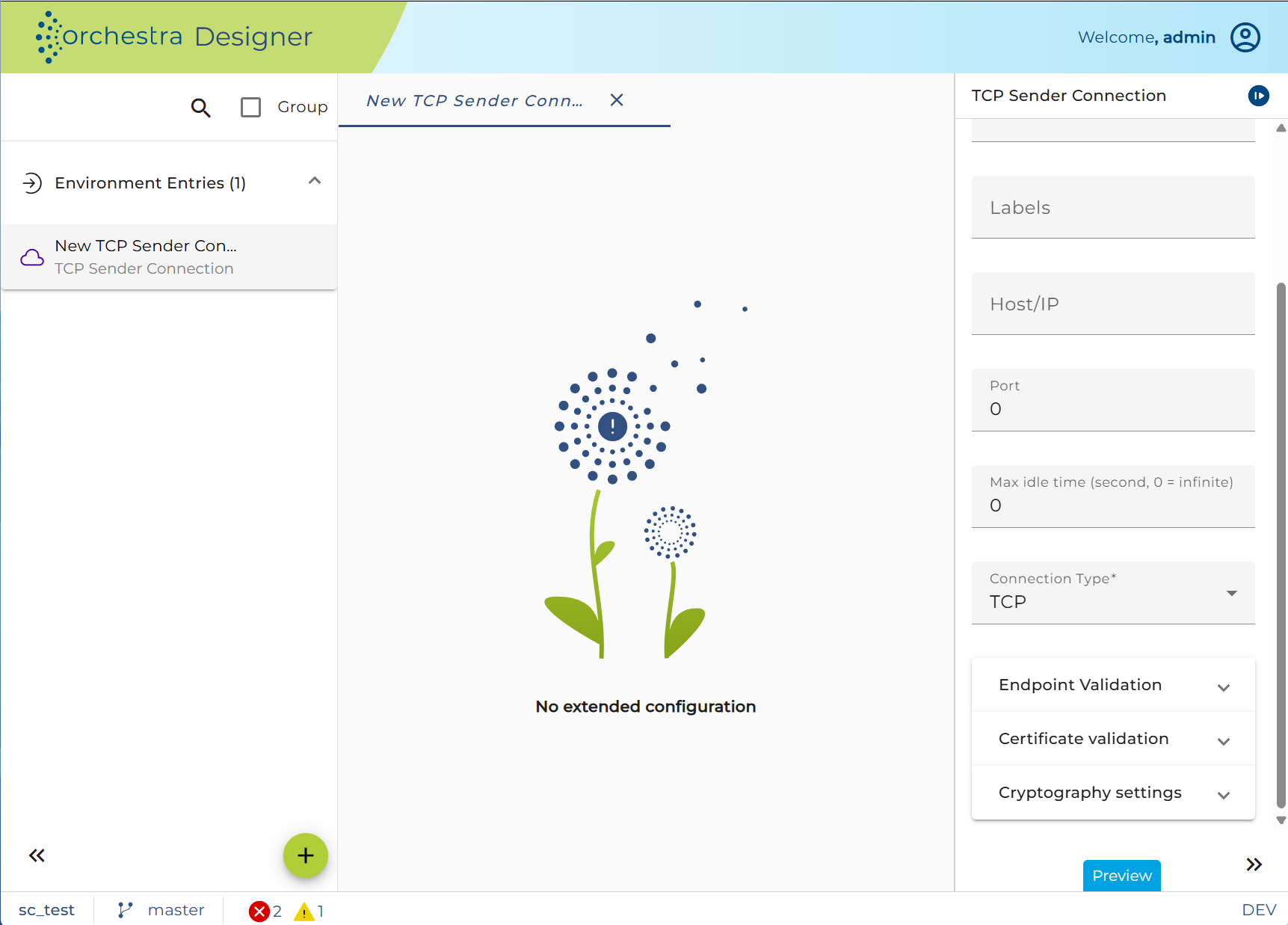
Step by Step
-
Create an Environment entry of type TCP/IP connection.
-
Fill in the host or IP of the intended system, e.g. localhost or 192.123.345.67.
-
Fill in the port of the system, which should be accessed.
-
Select the connection type:
- TCP: Core protocol of the Internet protocol suite.
- TLS(different versions): Cryptographic protocol to provide communication security.
- SSL: Predecessor of TLS.
-
Security Settings: Decide whether to use Authentication by enable the checkbox.
-
In case of Authentication:
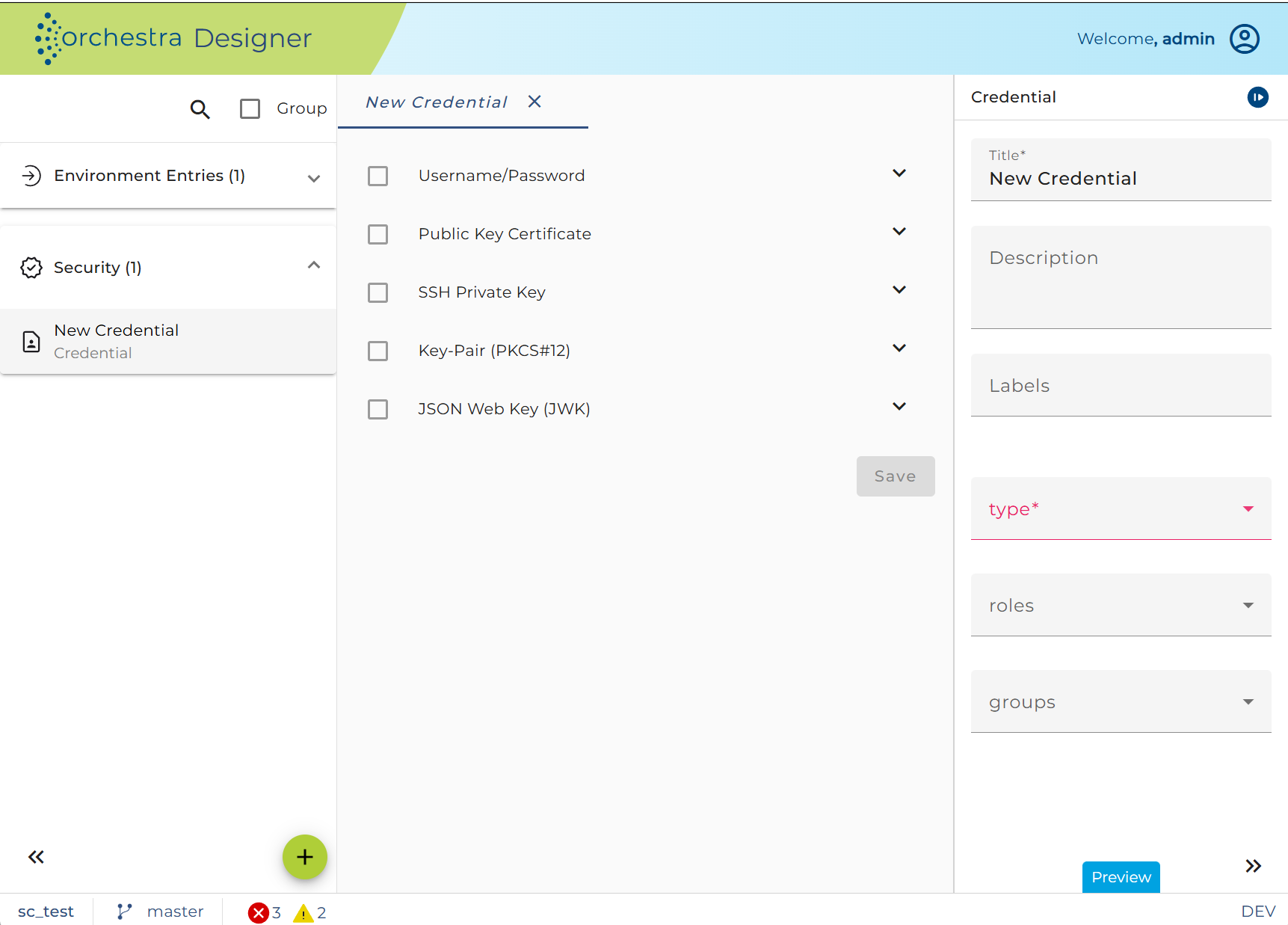
The certificate Check Panel allows a user to configure the client side HTTPS connection details.
-
User-Credentials (type=Technical login): The public/private keypair in pkcs#12 format which should be used for authorization.
-
Trusted server (optional, type=Trusted server): This option allows to check the server's public key certificate which is presented by the server when the client makes a request.
-
Trusted signer (optional, type=Trusted server): Checks whether the server's certificate has been signed by the given certificate and thus can be trusted.
-
Check certificate chain (optional): check if the certificate chain is correctly signed (certificate n is signed by certfificate n + 1)
-
Check validity** (optional): If set, then check if the certificate is expired.
-
Check signers against trust store: If set, then check that the one certificate in the certificate chain (typically the last one) is contained in the trust store.
-
Cipher Suites (optional): Enforcing specific Cipher Suites to be used in TLS. The cipher suites are added as comma separated values in the text box(e.g. "TLS_ECDH_RSA_WITH_AES_256_CBC_SHA,TLS_ECDHE_RSA_WITH_AES_256_CBC_SHA,TLS_DHE_RSA_WITH_AES_256_CBC_SHA").
-
-
Click Test: An alert window will appear, which shows whether the test of the connection was successful.
-
If the test was successful. Click on Finish.